
CONNECT
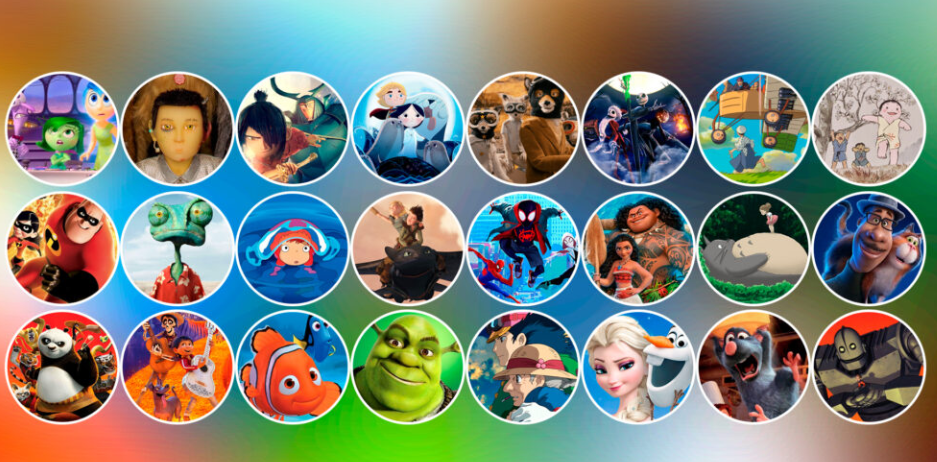 Animation is an art form that brings characters and stories to life through carefully crafted movements. We can find animation in two main formats: 2D and 3D. 2D animation is traditional, with hand-drawn frames, while 3D animation uses computer technology to create digital models of characters and settings. Both types of animation enchant us and transport us to imaginary worlds, leaving a lasting mark on our memories.
CONTEMPLATE
DO YOU KNOW WHAT IS PROGRAMMING LANGUAGE?
A programming language is made up of rules and symbols that allow you to create instructions for the computer to understand and execute tasks.
Scratch is a tool that allows you to organize commands in sequence to tell the computer what to do. Developed by the MIT Media Lab (Massachusetts Institute of Technology) in 2007, it is known for being simple and accessible, making it easier for people of different ages to start learning programming.
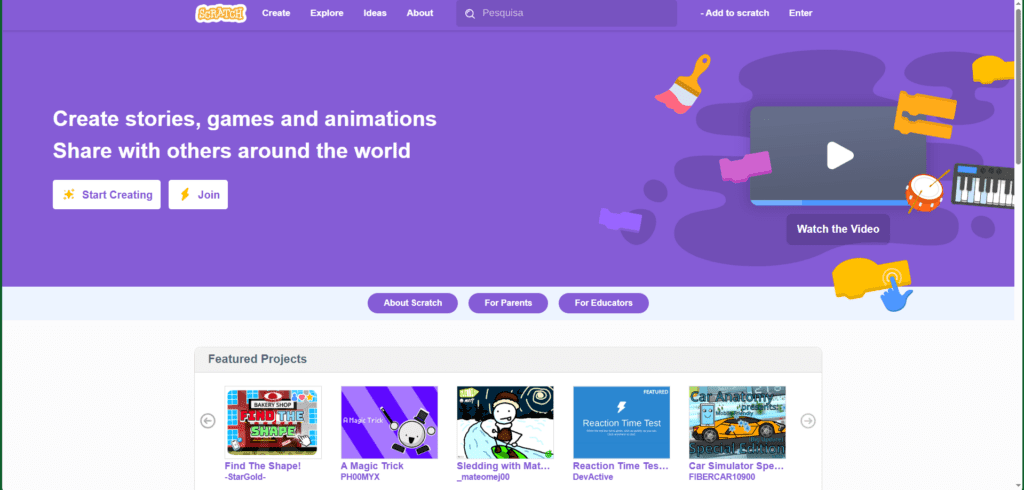
Learning to program with Scratch is quite simple because it uses a visual canvas with interlocking pieces, similar to building blocks, making it easy to create commands in a practical and fun way.
Watch the video and see some project examples:
WHAT CAN BE CREATED USING SCRATCH?
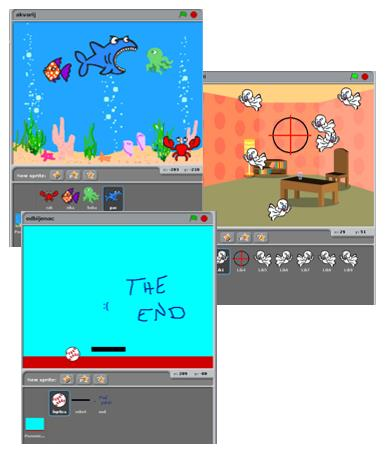
With Scratch, you can create a variety of projects, such as interactive stories, games, animations, educational projects and interactive applications.
The platform offers a wide range of creative possibilities for users to explore.
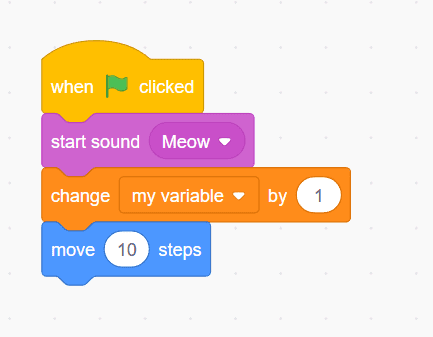
GETTING TO KNOW THE PROGRAM INTERFACE
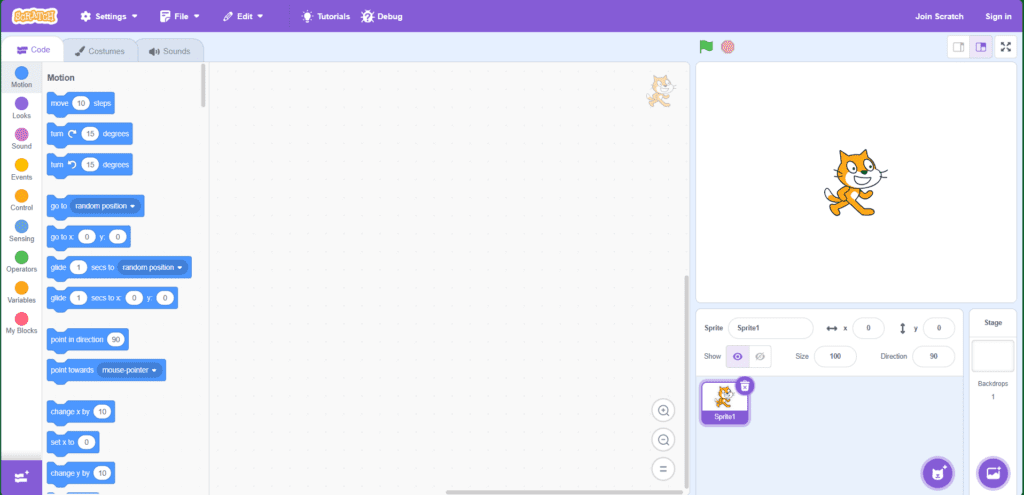
The program’s interface is very intuitive and simple to use.
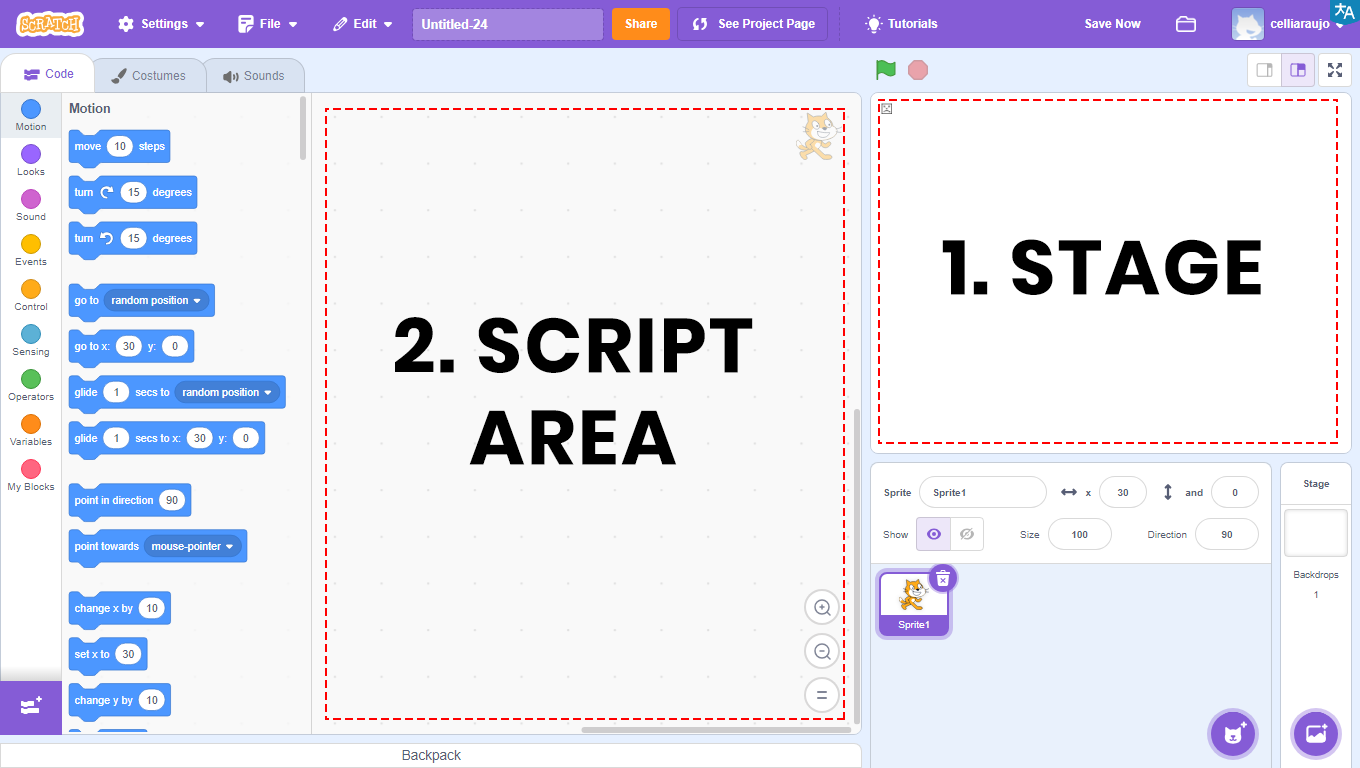
1 – Stage: area that will allow the visualization of the entire graphic and animated part of the project, and where the tests will be carried out.
2 – Script Area: area where the programming will take place. Here will be the codes that will be developed and the blocks that will be dragged.
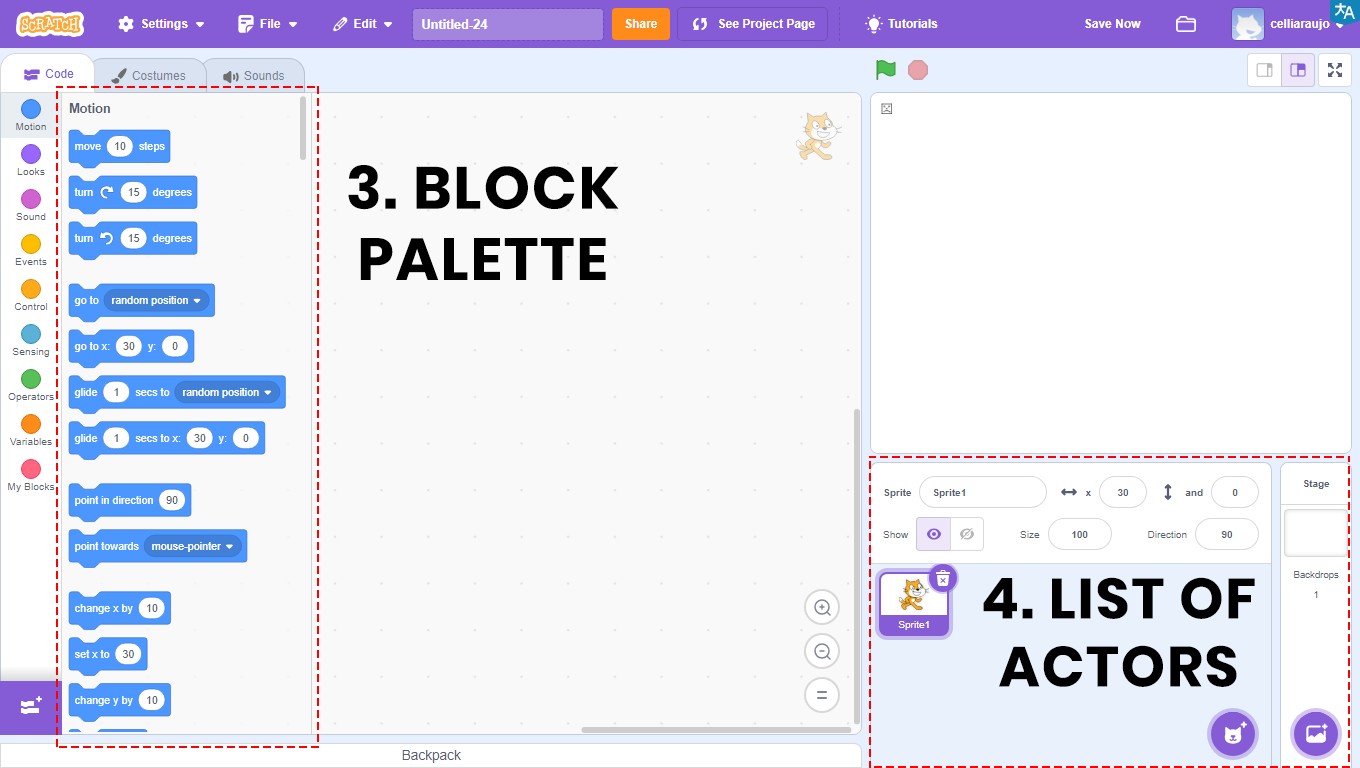

3 – Block Palette: all used blocks will be in this area. They are divided by color, and within each color, the blocks have different shapes. Each color is responsible for a function, and depending on the format, the block returns or reads a type of value.
In the Scripts Area there will be the blocks that will be compiled, that is, transformed into a program, which will be viewed on the Stage.
4 – List of Actors and Scenarios: It is the space where we can insert and modify the images displayed on the stage. Actors can range from characters, animals, people, objects, food, letters and numbers. Scenarios, on the other hand, are backgrounds, which can be images of real locations or artistic backgrounds, used to personalize the programming.
CONSTRUCT
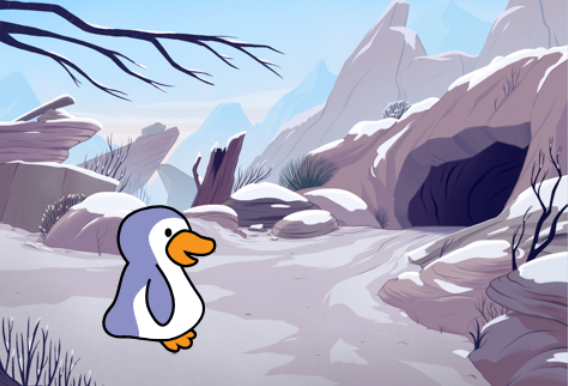
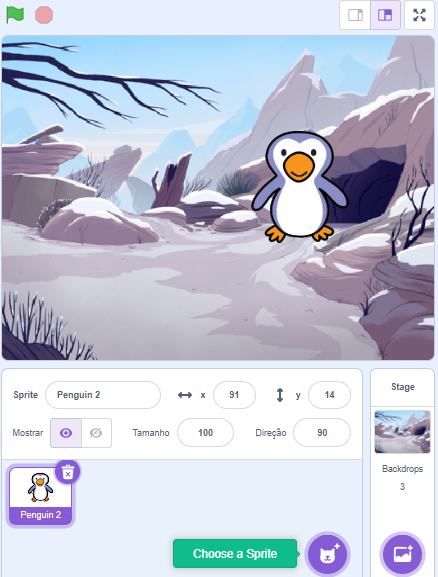 ANIME THE PENGUIN
A Access Scratch at https://scratch.mit.edu/ and create an actor, change the costumes, and add a background. Follow the step-by-step instructions, and when you’re finished, click the green flag and watch the animation.
GETTING TO KNOW SOME FEATURES OF THE PROGRAM
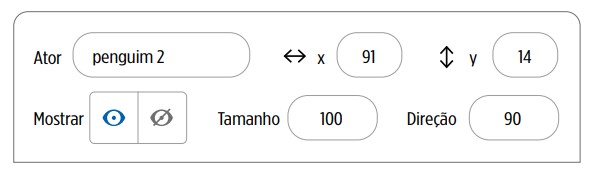
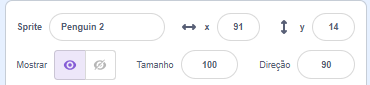
1. To rename the actors, click on the field next to the text “Actor”.
2. To adjust the position of the actors on the stage, enter numbers in the x and y coordinate fields.
3. To make the actor visible or invisible, click on the icons in the “Show” item.
4. To change the size of the sprite, adjust the numbering in the “Size” field.
5. To change the actor’s direction, adjust the numbering in the “Direction” field.
CREATING NEW FANTASIES FOR THE ACTOR
1. Click on the actor Cat and than on the trash icon to delete it.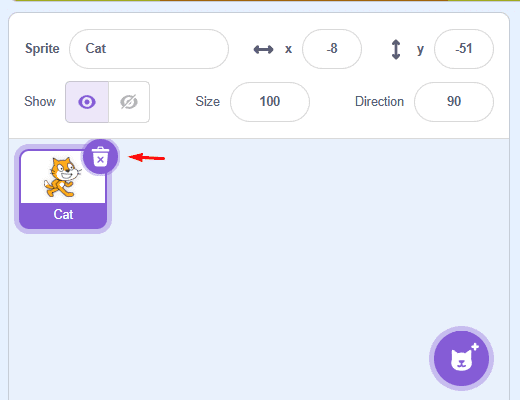
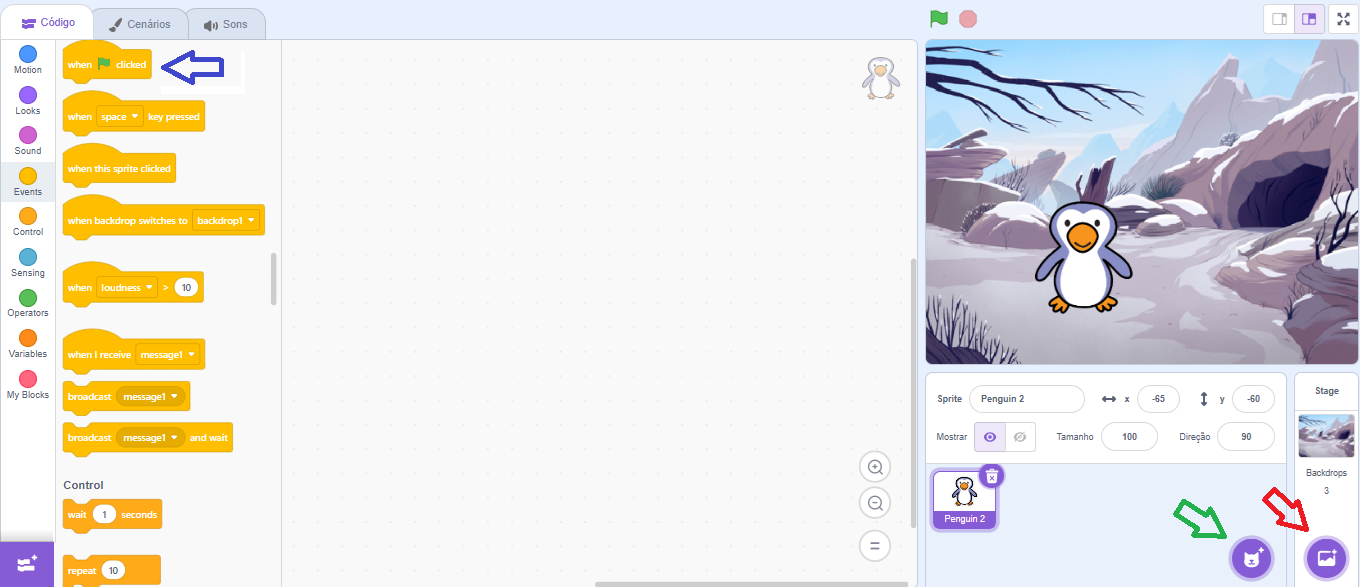
2. Click on the location indicated by the green arrow to insert the new character (Actor: Penguin 2).
3. Click on the location indicated by the red arrow to select the Stage Scenery. For this activity, use the Snow (Mountain) Scenery.
4. In the code, click on “Events” and drag the “when clicked” block to the Scripts Area (blue arrow).
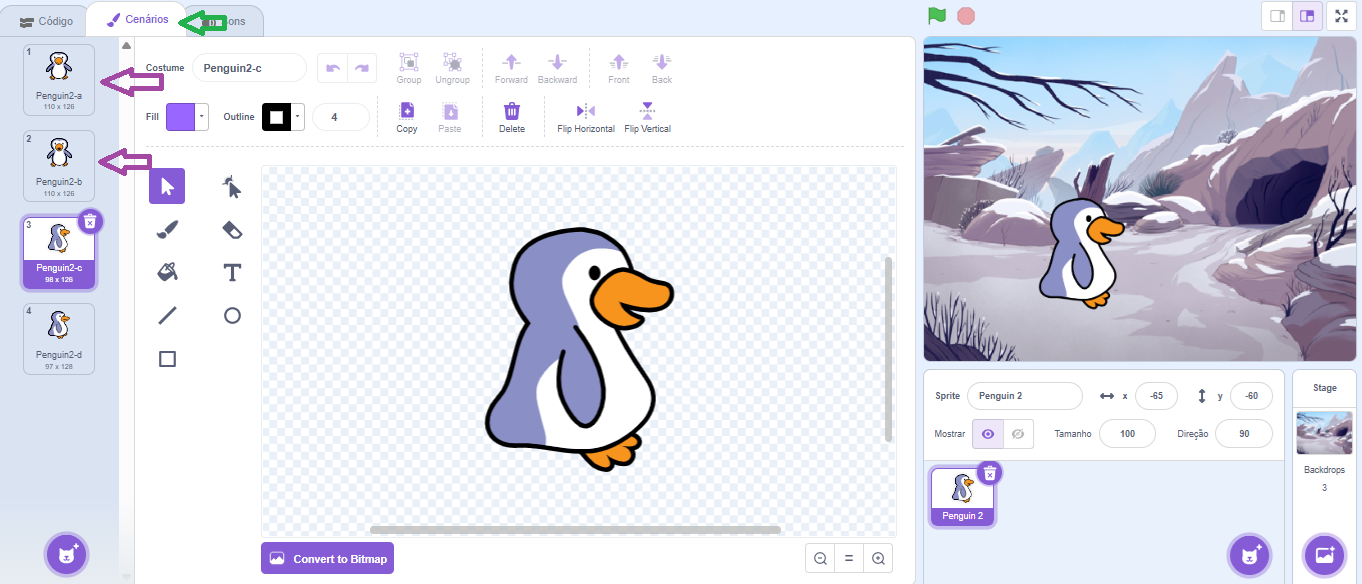
5. Click on the chosen Actor for the animation. To select costumes for this character, you need to click on the Costumes tab (green arrow) and choose the first two options on the left.
In this activity, costumes 1 (penguin2-a) and 2 (penguin2-b), indicated by the purple arrow, will be used. Delete the costumes that will not be used.
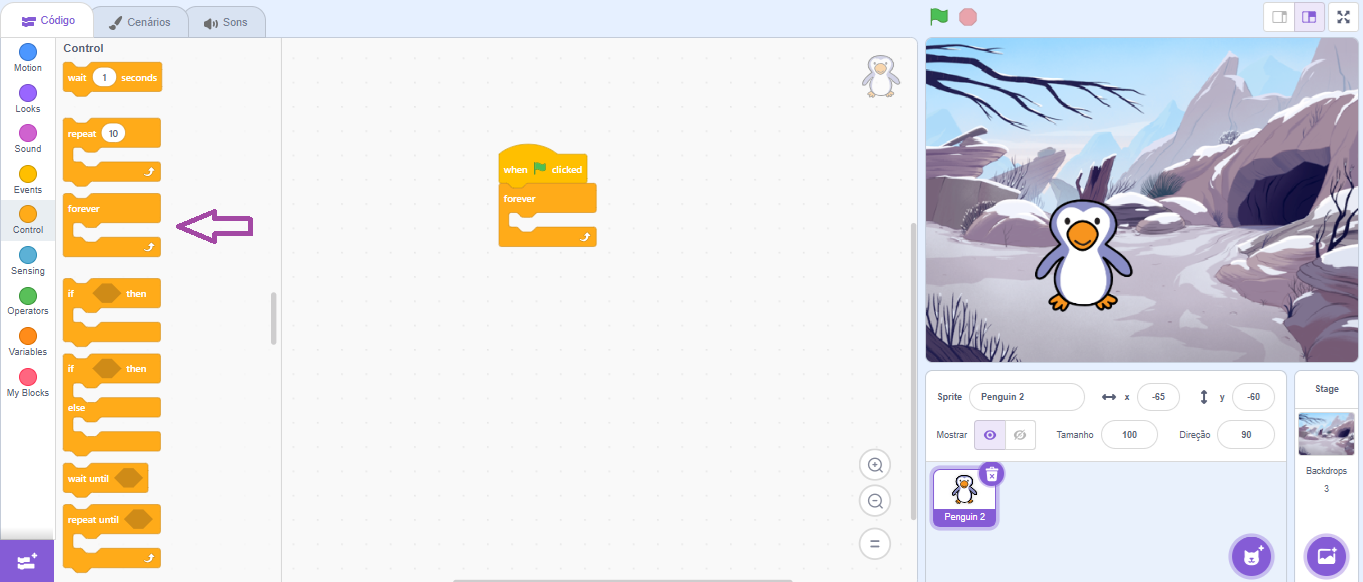
6. Select the Actor. In the code, click on “Control”, drag the “always” block to the Scripts Area (purple arrow). All new blocks should be inserted inside the “always” command.
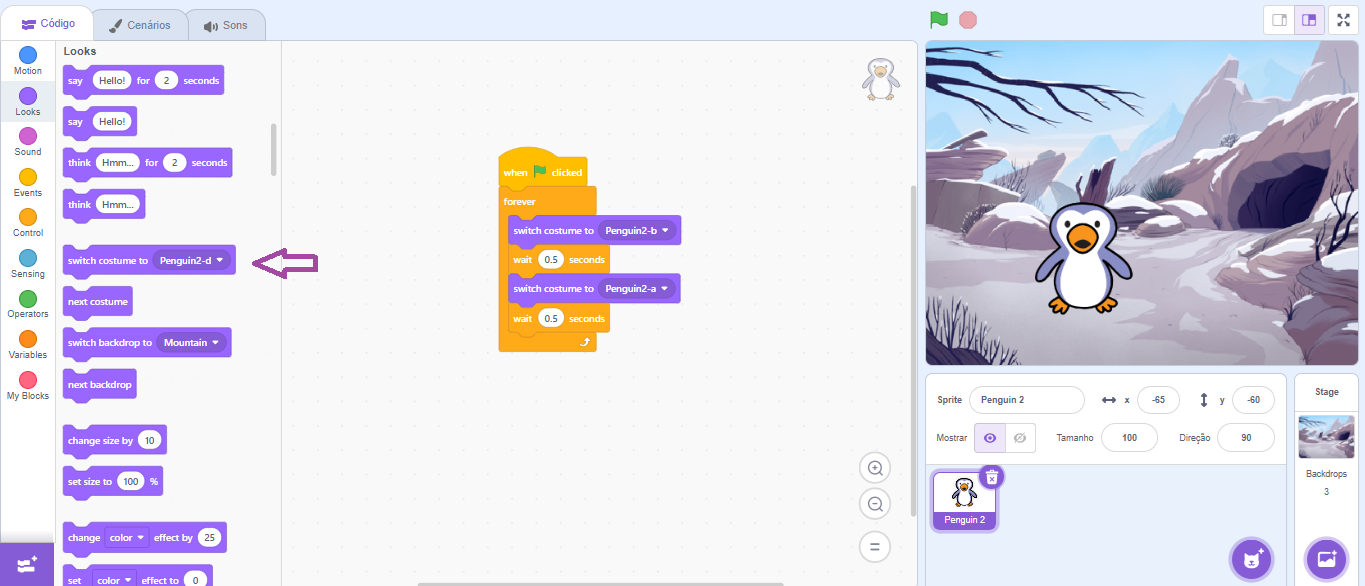
7. Next, to change the Actor’s costume, click on “Appearances” and drag the “change to costume…” block to the Scripts Area (purple arrow). In the white box, change it to the name of the chosen costume; in this case, we put (Penguin 2-b).
8. In Control, drag the “wait 1 sec” block; in the white box, change the time to 0.5 seconds.
9. Then, repeat steps 7 and 8. At this stage, the second costume (Penguin 2-a) will be inserted.
Challenge: Swap costumes and create new animations.
CONTINUAR
Share the construction results with the class:
- Which block was used to change costumes?
- In the color palette, what are the functions of the blocks within Events?